
Documentation
Performance Max Location Targeting is a rule-based automation that analyzes city-level performance for your PMax campaigns every day and removes locations that drain budget without meeting your conversion or efficiency goals. You define the thresholds; Adnine enforces them. Choose suggestion mode to preview changes before anything touches Google Ads, or execution mode to let the system update targeting automatically once your rules are trusted.
- Best for
- Cutting wasted spend in underperforming PMax cities and towns
- Decision modes
- Suggestion mode (preview only) or execution mode (live changes)
- Rule inputs
- Spend threshold, conversion count, CPA cap, ROAS floor
- Run cadence
- Daily, always based on the latest performance data
- Current support
- City-level and region-level targeting supported
#What it does
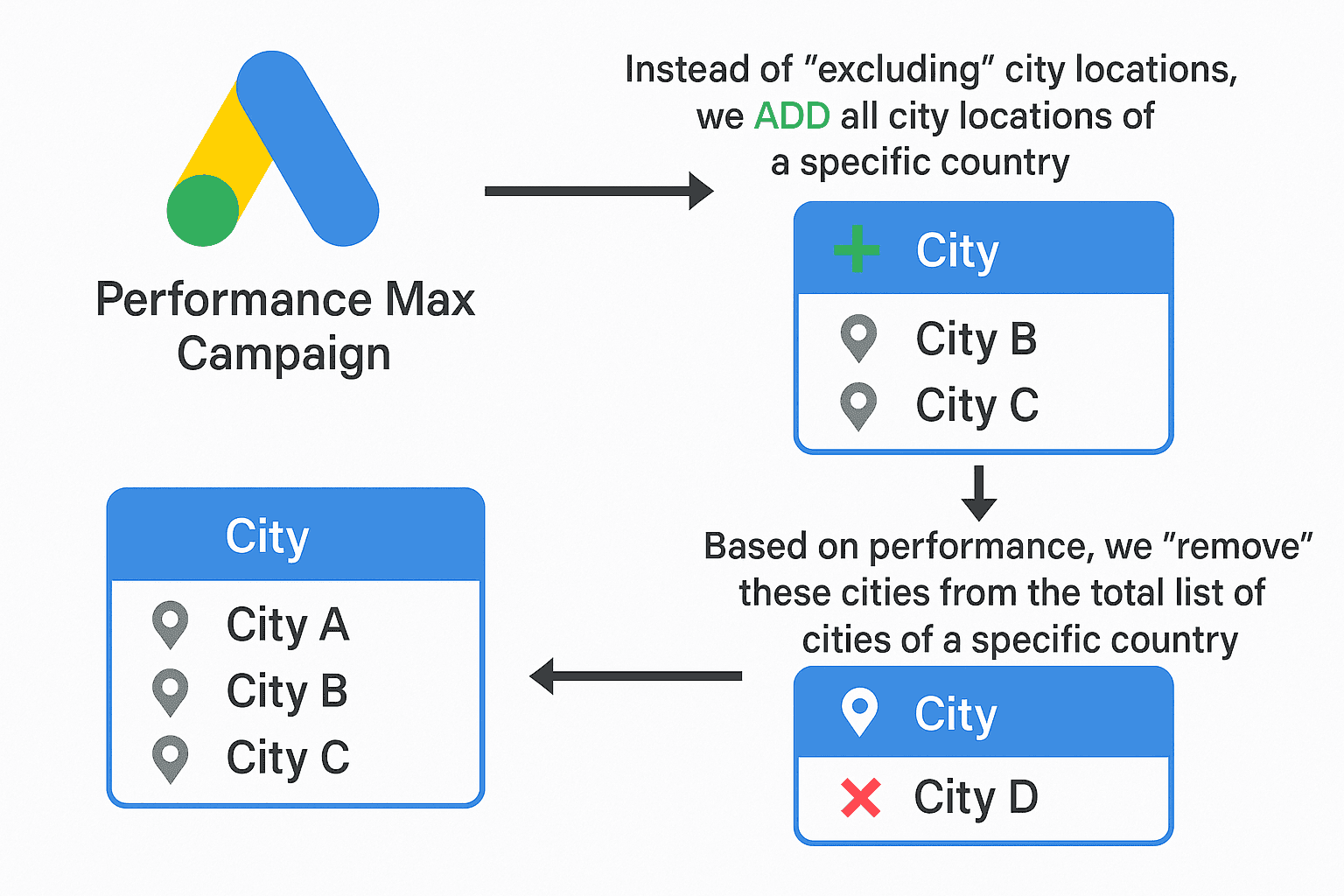
Performance Max campaigns do not support direct city exclusions the way standard campaigns do. Adnine works around this by managing the campaign's positive location targets instead. When you activate this feature, Adnine builds a complete city-level targeting list for the country you choose, then removes any city that fails the performance rules you define. Ads stop appearing in removed locations, particularly when the campaign is set to target people present in your targeted areas.
You stay in full control of the logic. Adnine only acts on the thresholds you configure. Nothing changes in Google Ads until you decide to move from preview into execution.
#Who it's for
This feature is suited to advertisers who run Performance Max campaigns across multiple cities or regions and suspect that a portion of their budget is being absorbed by locations that never convert. It is equally useful for agency account managers who need a reviewable, auditable process before automation touches a client's campaigns.
Good fits vs. situations that need more preparation
| Situation | Recommendation |
|---|---|
| Mature PMax campaign with steady conversion volume | Strong candidate for execution mode. Use suggestion mode first to verify rule quality, then switch. |
| New campaign or recently changed offer | Start with suggestion mode. Conversion data may be thin; let the campaign accumulate enough signal before automating. |
| Client account requiring approval before changes | Use suggestion mode permanently or until the client reviews and signs off on the rule output. |
#Suggestion mode vs. execution mode
Both modes run the same rule logic. The only difference is whether the output stays inside Adnine as a reviewable preview or is written back to Google Ads as an actual targeting change.
Mode comparison
Use suggestion mode until the rule output consistently matches your expectations, then promote to execution mode.
| Mode | What Adnine does | Effect on Google Ads | Best used when |
|---|---|---|---|
| Suggestion mode | Simulates which cities would be removed and stores the results in a preview table. | No changes. Google Ads targeting is untouched. | Testing the setup, tuning thresholds, onboarding a new account, or requiring manual approval. |
| Execution mode | Removes cities from the campaign's location targeting when they fall below your thresholds. | Location targeting is updated in Google Ads. | Trusted rules, mature account, and you are ready for automated daily management. |
#How Adnine identifies underperforming locations
Each day Adnine pulls location-level performance data for the selected PMax campaigns and checks every city against your rules. A city is flagged when it has accumulated enough signal to be evaluated and fails one or more of the thresholds you configured.
Performance rule inputs
Combine multiple signals so a city needs both evidence of spend and evidence of poor results before being removed.
| Rule input | What it guards against | Example |
|---|---|---|
| Spend threshold | Prevents action until a city has spent enough to be judged fairly. | Only evaluate cities that have spent at least EUR 50. |
| Conversion count | Flags cities that consume budget without generating conversions. | Remove if spend exceeds EUR 50 with zero conversions. |
| CPA cap | Flags cities where the cost per acquisition is too high. | Remove if CPA exceeds EUR 80 after at least EUR 100 in spend. |
| ROAS floor | Flags cities where return on ad spend is too low. | Remove if ROAS falls below 2x after sufficient spend. |
#Setup walkthrough
- Select campaigns and country Choose the Performance Max campaigns you want to manage and the country whose locations you want to evaluate.
- Choose the targeting level Choose whether Adnine evaluates locations at city or region level. Adnine builds the candidate list automatically from each campaign's location performance; there is no list to upload.
- Configure your performance rules Set the thresholds that represent wasted spend for this account: minimum spend before evaluation, maximum CPA, minimum ROAS, or conversion-count requirements. Use more than one rule to avoid acting on thin data.
- Choose suggestion mode and review the output Run the feature in suggestion mode first. Review the preview table of cities that would be removed and confirm the rules are catching genuine underperformers, not cities that simply had a quiet week.
- Enable presence targeting in Google Ads In the Google Ads campaign settings, set Advanced location targeting to Presence: "People in or regularly in your targeted locations". This makes the practical effect of removing a city from targeting much more precise.
- Switch to execution mode when rules are trusted Once the suggestion-mode output consistently matches your expectations and any required approvals are in place, switch to execution mode. Adnine will then update location targeting in Google Ads daily.
- Monitor results in the dashboard Use the summary insights view to track removed cities, quantify the redirected spend, compare suggestion and execution outcomes, and download the full audit log as a CSV.
#First run and subsequent runs
Run behavior by type
| Run type | What Adnine does | What is reported |
|---|---|---|
| Execution runs | Checks all currently targeted cities against your rules. Removes only those that fall below your thresholds. Preserves all other targeting settings. | Cities removed in this run, the rules triggered, and cumulative removal history. |
| Suggestion mode runs | Simulates the removal logic and stores the preview results. No changes are made to Google Ads. | Cities that would be removed and the rules that would have triggered each removal. |
#Reading the dashboard
The summary insights dashboard lets you track what the location workflow has done over time, understand the spend impact, and compare outcomes across accounts, campaigns, and modes.
Dashboard outputs and what to use them for
| Output | What it tells you | Action it supports |
|---|---|---|
| Cities removed by account or campaign | Which campaigns are seeing the most location activity and whether the right campaigns are in scope. | Verify campaign selection and adjust scope if needed. |
| Spend by removed cities | How much budget was tied to the locations that were removed. | Quantify the efficiency gain and report it to stakeholders. |
| Suggestion vs. execution comparison | Whether suggestion mode and execution mode are aligned or diverging over time. | Identify rule drift or situations where execution mode is not yet safe to enable. |
| Filterable audit log | A full record of every city that was suggested or removed, the rule that triggered it, and when it happened. | Audit changes, troubleshoot unexpected removals, and share evidence with clients. |
| CSV download | The same audit data in a format ready for external reporting or client review. | Include in monthly reports, QA checks, or handover documentation. |
#Pitfalls and limits
Understanding the mechanics and current constraints helps you configure the feature correctly from the start.
Known limits and how to handle them
| Limit | What it means in practice | How to handle it |
|---|---|---|
| City and region targeting | The feature manages city-level and region-level targets. Postal-code targeting is not supported. | Confirm your campaign targeting strategy is city- or region-based before enabling. |
| No direct city exclusions in PMax | The feature works by controlling positive targets, not by adding exclusion targets. The "absence" effect depends on Google's delivery behavior. | Enable Advanced location targeting Presence setting to improve precision. |
#Troubleshooting
Common questions and issues
Ads are still showing in a city I removed. Why?
A strong city was removed by mistake. What should I do?
Suggestion mode shows many more removals than I expected.
Execution mode removed a city I wanted to keep.
Which countries does this feature support?
Do I need to upload a list of cities to analyze?
#Best practices
- Start in suggestion mode and review the output for several days before switching to execution mode.
- Always pair a CPA or ROAS rule with a spend threshold to avoid acting on thin data.
- Enable Advanced location targeting Presence in Google Ads for all campaigns managed by this feature.
- Review the execution-run output carefully; it removes locations that fail your rules while leaving other targeting in place.
- Check the audit log after each execution run to confirm removals match your expectations.
- Revisit thresholds when seasonality, budget, offer, or conversion tracking changes significantly.
- Use the CSV export to document location changes for client reporting and QA.